ntryk
ntryk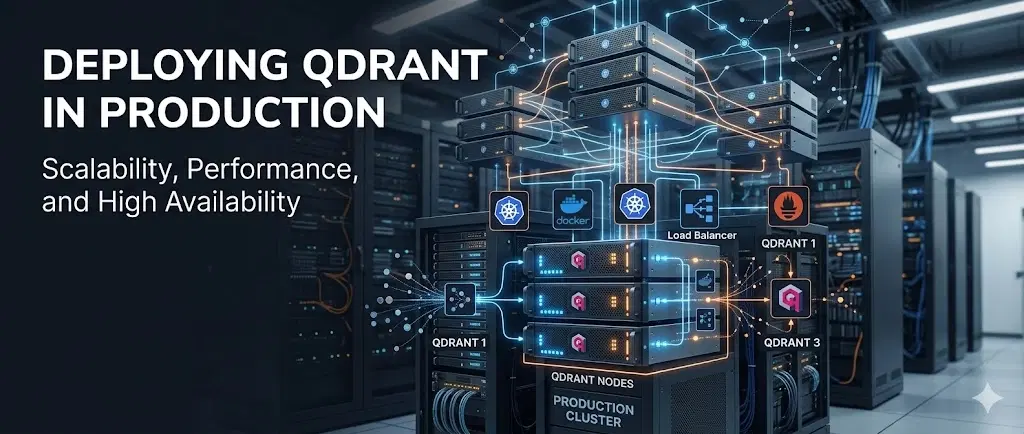
How to Deploy Qdrant in Production: The Complete Guide (2026)#
Every Qdrant tutorial starts the same way:
bash
docker run -p 6333:6333 qdrant/qdrantThat gets you a running instance in about 10 seconds. It will also lose all your data on the next restart, expose your API publicly with no authentication, and fall over the moment your vector count grows past what fits in RAM.
Production is different. This guide covers what it actually takes to run Qdrant reliably — the right server specs, persistence, security, quantization, replication, and observability. If you're moving from prototyping to a real deployment, this is the checklist you need.
What makes Qdrant a strong production choice#
Before getting into setup, a quick word on why Qdrant is worth the investment.
Qdrant is written in Rust, not Python, not Go - which means it extracts significantly more throughput per CPU core than most alternatives. A 4-core Qdrant instance handles roughly the same concurrent query load as an 8-core Chroma or Weaviate setup under equivalent conditions. At production scale, that difference matters.
Beyond raw performance, Qdrant offers:
HNSW indexing - Hierarchical Navigable Small World graphs for fast approximate nearest-neighbor search with configurable recall/speed tradeoff
Payload filtering - filter by metadata at query time without a separate query layer; one of Qdrant's strongest capabilities and a key differentiator vs pgvector
Hybrid search - combine dense vector search with sparse (BM25) for retrieval quality that's usually better than either alone
Multiple quantization modes - Scalar, Binary, and Product quantization to cut RAM requirements by 4x to 32x
Multitenancy - native collection-level and payload-level isolation without spinning up separate instances per tenant
Now let's actually deploy it.
Step 1: Size your server correctly#
This is where most people go wrong. They spin up a $5 VPS, load their embeddings, and then hit out-of-memory errors within a week.
Qdrant's memory requirement for in-memory mode follows this formula:
RAM needed = number_of_vectors × vector_dimensions × 4 bytes × 1.5The 1.5x multiplier accounts for the HNSW index, metadata, and optimization segments. Let's run through real examples with OpenAI's text-embedding-3-small model (1536 dimensions):
| Vector count | Dimensions | RAM required (unquantized) |
|---|---|---|
| 100,000 | 1536 | ~0.9 GB |
| 1,000,000 | 1536 | ~8.6 GB |
| 10,000,000 | 1536 | ~86 GB |
| 100,000,000 | 1536 | ~860 GB |
Those numbers scale fast. The practical fix is quantization - covered in Step 4.
Recommended server specs by workload:
| Workload | CPU | RAM | Storage |
|---|---|---|---|
| Dev / prototyping | 1 vCPU | 1 GB | Any |
| Small production (< 1M vectors) | 2 vCPU | 4–8 GB | NVMe SSD |
| Mid-scale (1M–10M vectors) | 4 vCPU | 16–32 GB | NVMe SSD |
| High-throughput (10M+ vectors) | 8+ vCPU | 64 GB+ | NVMe SSD |
Use NVMe SSDs, not HDDs. Qdrant's memmap storage (on-disk mode) performs well on NVMe but degrades badly with spinning disks due to the random read pattern of HNSW traversal.
Step 2: Docker Compose setup with persistence#
Never run Qdrant with the default docker run command in production. Use Docker Compose with explicit volume mounts, environment variables, and a healthcheck.
Here's a production-ready docker-compose.yml:
yaml
version: "3.8"

services:
  qdrant:
    image: qdrant/qdrant:latest
    container_name: qdrant
    restart: unless-stopped
    ports:
      - "6333:6333"   # REST API
      - "6334:6334"   # gRPC API
    volumes:
      - qdrant_storage:/qdrant/storage
      - ./config:/qdrant/config
    environment:
      - QDRANT__SERVICE__API_KEY=your-strong-api-key-here
      - QDRANT__LOG_LEVEL=INFO
      - QDRANT__SERVICE__HTTP_PORT=6333
      - QDRANT__SERVICE__GRPC_PORT=6334
    healthcheck:
      test: ["CMD", "curl", "-f", "http://localhost:6333/healthz"]
      interval: 30s
      timeout: 10s
      retries: 3
    networks:
      - qdrant-network

networks:
  qdrant-network:
    driver: bridge

volumes:
  qdrant_storage:
    driver: local
A few things to note here:
The API key is non-negotiable. Without it, your Qdrant REST API is fully open to anyone who can reach port 6333. Generate a strong key: openssl rand -hex 32.
Named volumes survive container restarts. If you use a bind mount (./qdrant_storage:/qdrant/storage) instead, make sure the host directory has the right permissions. Named volumes are cleaner.
gRPC (port 6334) is optional but recommended for high-throughput use. gRPC is faster than REST for batch upsert operations and works well with Python clients at scale.
Step 3: TLS and reverse proxy#
Never expose Qdrant's port directly to the internet, even with an API key. Put a reverse proxy in front with TLS termination.
Beyond TLS, block direct access to port 6333 at the firewall level so only your reverse proxy can reach it:
bash
# Allow only localhost to reach Qdrant directly
sudo ufw deny 6333
sudo ufw allow 443
Your application should then always connect via the HTTPS endpoint, never the raw port.
Step 4: Quantization - the most impactful config change you'll make#
Quantization compresses your vectors in memory. It is the single most impactful optimization you can apply before going to production, and most teams skip it.
Qdrant offers three modes:
Scalar Quantization (recommended default)#
Converts float32 (4 bytes) to int8 (1 byte) per dimension. 4x memory reduction with minimal recall loss for most embedding models. Right choice for the majority of production workloads.
json
PUT /collections/my_collection
{
  "vectors": {
    "size": 1536,
    "distance": "Cosine"
  },
  "quantization_config": {
    "scalar": {
      "type": "int8",
      "quantile": 0.99,
      "always_ram": true
    }
  }
}
Binary Quantization#
Reduces memory by 32x. Each float becomes a single bit. Extremely fast but works well only with specific high-dimensional models (OpenAI text-embedding-ada-002, Cohere embed-english-v2.0). Always benchmark recall before using in production.
json
"quantization_config": {
  "binary": {
    "always_ram": true
  }
}
The always_ram pattern#
A powerful hybrid - store original full-precision vectors on disk (memmap), keep quantized vectors in RAM. This gives you fast initial candidate retrieval from RAM, then rescores using the full vectors on disk. Memory stays manageable, accuracy stays high.
json
"vectors": {
  "size": 1536,
  "distance": "Cosine",
  "on_disk": true
},
"quantization_config": {
  "binary": {
    "always_ram": true
  }
}
After enabling quantization, always benchmark recall. Some embedding models quantize poorly. Run a set of representative queries before and after and verify your recall@10 or recall@20 meets your accuracy requirements.
Step 5: Replication for high availability#
A single-node Qdrant deployment is fine for development. In production, a single node means a single point of failure.
Enable distributed mode:
bash
QDRANT__CLUSTER__ENABLED=trueQdrant's replication recommendations:
| Config | Best for |
|---|---|
| Single node | Dev, internal tools, non-critical |
| 2 nodes + 1 replica | Balance of HA and cost |
| 3+ nodes + 2 replicas | Production - survives loss of 1 node without data loss |
Create a replicated collection:
json
PUT /collections/my_collection
{
  "vectors": {
    "size": 1536,
    "distance": "Cosine"
  },
  "shard_number": 2,
  "replication_factor": 2
}
With replication_factor: 2 across 3 nodes, you can lose one node completely and continue serving reads and writes without interruption.
Important: When you add a new node to an existing cluster, data does not move automatically. You need to trigger rebalancing manually or via the Qdrant Cloud panel. On self-hosted, this is a manual POST /collections/{name}/cluster/replicas operation.
Step 6: Backups and snapshots#
Qdrant supports point-in-time snapshots at the collection level. Take them before major version upgrades, schema changes, or large bulk ingestion runs.
Create a snapshot:
bash
curl -X POST "https://qdrant.yourdomain.com/collections/my_collection/snapshots" \
  -H "api-key: your-api-key"
List snapshots:
bash
curl "https://qdrant.yourdomain.com/collections/my_collection/snapshots" \
  -H "api-key: your-api-key"
Restore from snapshot:
bash
curl -X PUT "https://qdrant.yourdomain.com/collections/my_collection/snapshots/recover" \
  -H "api-key: your-api-key" \
  -H "Content-Type: application/json" \
  -d '{"location": "https://your-storage/snapshot-name.snapshot"}'
For automated backups, store snapshots to object storage (S3, R2, or a storage bucket) on a cron schedule. Snapshots are portable - you can restore to a completely different Qdrant instance from a snapshot file.
Step 7: Production configuration tuning#
A few kernel and Qdrant-level settings that meaningfully affect production performance:
Linux kernel settings (/etc/sysctl.conf):
bash
vm.max_map_count = 262144   # Required for memmap storage
vm.swappiness = 10           # Reduce swap usage — swap kills vector search latency
net.core.somaxconn = 65535
net.ipv4.tcp_max_syn_backlog = 65535
Apply without reboot: sudo sysctl -p
Qdrant collection config tips:
Set
on_disk: truefor vectors when your dataset exceeds available RAMUse
memmap_threshold: 20000- segments smaller than this stay in RAM, larger ones go to diskIncrease
max_segment_sizefor read-heavy workloads to reduce segment countSet
hnsw_config.mbetween 16–32 for production (higher = better recall, more RAM)
Step 8: Observability - know when things go wrong#
Qdrant exposes a Prometheus metrics endpoint at /metrics. Scrape it with Prometheus and visualize in Grafana.
Key metrics to watch:
qdrant_collections_total— collection countqdrant_vectors_count— total vectors indexedapp_info— version and uptimeREST API response times via your reverse proxy access logs
For latency alerting, set up a basic uptime monitor on your Qdrant health endpoint (/healthz). If that endpoint stops responding, your application's vector search is down — and without a monitor, you'll find out from a user, not an alert.
(If you don't have endpoint monitoring set up yet, here's a guide to free uptime monitoring that covers HTTP, TCP, and webhook alerts — takes two minutes to configure.)
The production checklist#
Before you call your Qdrant deployment production-ready, verify every item:
Server sized correctly for your vector count and dimensions
Docker Compose with named volumes and
restart: unless-stoppedAPI key set via environment variable - not hardcoded
TLS via reverse proxy - port 6333 blocked at firewall
Quantization configured and recall benchmarked
At least 2-node cluster with replication enabled (for HA)
Snapshot backup schedule configured with off-site storage
vm.max_map_countset to 262144Prometheus metrics scraped and Grafana dashboard live
Healthcheck monitor on
/healthzwith alerting
The honest tradeoff: self-hosted vs managed#
Self-hosting Qdrant gives you full control, no vendor dependency, and lower costs at scale. It also means you own everything above - setup, patching, cluster management, backup testing, incident response.
That list is manageable if you have engineering bandwidth and the deployment is worth the investment. But there is a real cost: the time spent on infrastructure is time not spent on your product.
The crossover point where self-hosting makes financial sense is roughly when your managed Qdrant bill exceeds ~$96–150/month and you have someone on the team comfortable owning database operations. Below that threshold, managed wins on total cost of ownership.
The managed path: skip the ops, keep the power#
If you want Qdrant in production without configuring any of the above, Antryk deploys fully managed Qdrant - along with Milvus, Weaviate, and Chroma - in a single click. No Docker, no reverse proxy config, no quantization YAML, no cluster setup.
What you get out of the box:
One-click deployment - pick Qdrant, choose your plan, get a live endpoint with a URL and API key in under two minutes
Automated backups - daily snapshots with one-click restore, stored off-instance
Free TLS - HTTPS endpoint included, no Certbot, no Nginx config
Built-in monitoring - endpoint health, response time, and uptime tracked automatically
Scaling without migration - vertical and horizontal scaling from the dashboard without touching config files
All four vector databases on one platform - if you start on Chroma for prototyping and want to move to Qdrant for production, it's a new deployment on the same dashboard, same billing, no infrastructure change
The vector database pricing starts at a level that makes sense well before self-hosting becomes worth it - and because Antryk runs everything on the same platform, your vector DB, backend API (web-services) are all under one bill.
For teams that want to ship AI features without a dedicated infrastructure engineer, that tradeoff is usually straightforward.
Bottom line#
Running Qdrant in production is not hard - but it requires deliberate choices. Get the server sizing wrong and you hit OOM errors mid-traffic. Skip quantization and you overpay for RAM. Run a single node and you have a silent single point of failure.
The checklist in this guide covers everything that matters before you ship. Work through it once, automate the backup schedule, wire up your metrics, and your Qdrant deployment will handle production traffic reliably.
If you'd rather not own the ops at this stage, managed Qdrant on Antryk handles all of it - deploy in under two minutes →
Priyanka K
Cloud Infrastructure Engineer
Priyanka has a background in backend engineering and cloud infrastructure. She's spent the last five years helping early-stage startups make smarter infrastructure decisions — without overcomplicating things. When she's not writing, she's probably arguing about database indexing strategies or breaking something in a staging environment. She believes good infrastructure should be invisible, and your weekend should stay yours.